How to put OctoJinn on your phone
Put the OctoJinn icon on your iPhone or Android home screen — it opens in one tap, in its own window, with no tab to look for and no address to type. There is nothing to download from the App Store, Google Play or RuStore: Safari or Chrome is enough
Point your phone's camera here — the instructions open right on it
On iPhone — with Safari
If the link opened in Telegram, VK or your mail app, first tap «•••» → «Open in Safari»
Open octojinn.ru in Safari, sign in and tap «Share» at the bottom of the screen. If there is no such button, tap «•••» to the right of the address bar, then «Share»
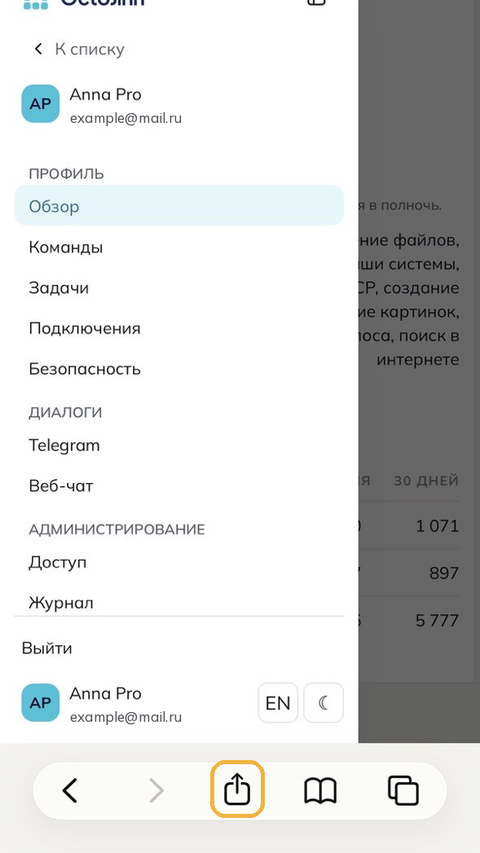
Choose «Add to Home Screen». If you can't see it, first tap «Show more»
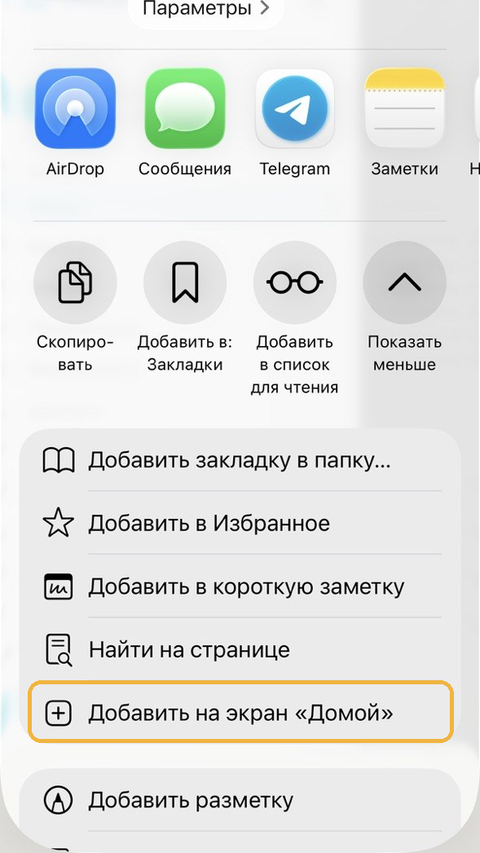
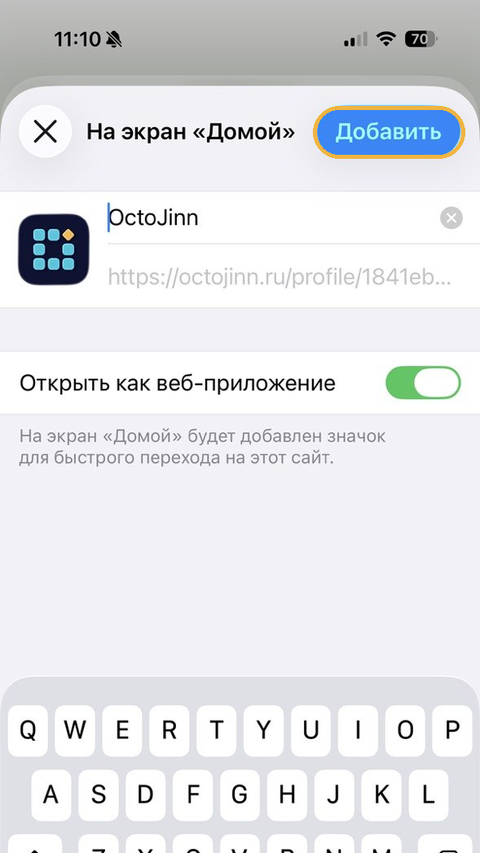
Leave «Open as Web App» on and tap «Add»


The quick way
Or follow the steps below
On Android — with Chrome
If the link opened in another app, tap «⋮» → «Open in Chrome»
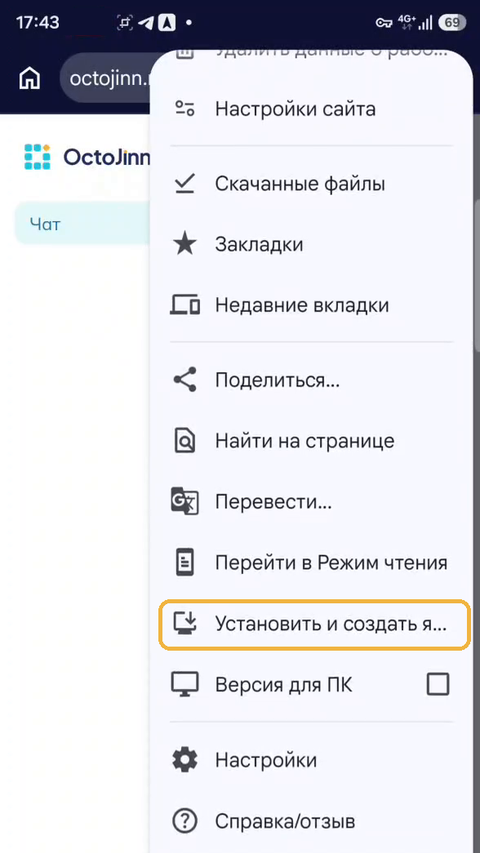
Open octojinn.ru in Chrome, sign in and tap «⋮» in the top right corner
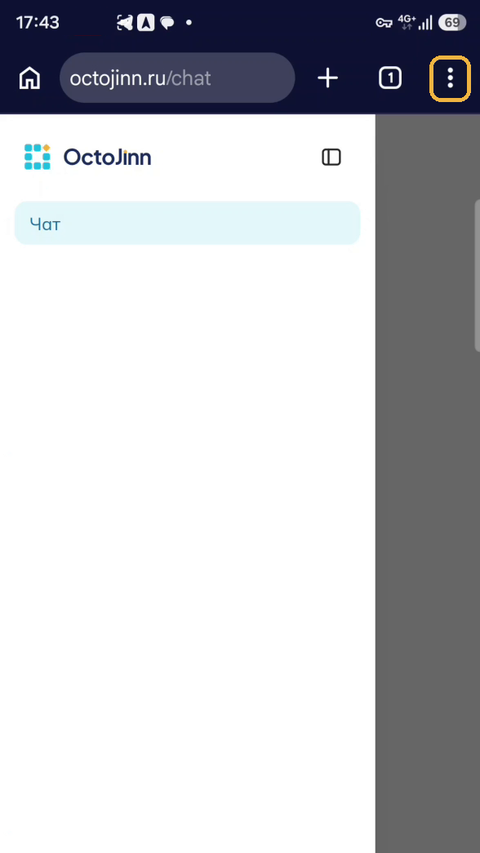
Scroll the menu and choose “Install and create shortcut”
Tap «Install»
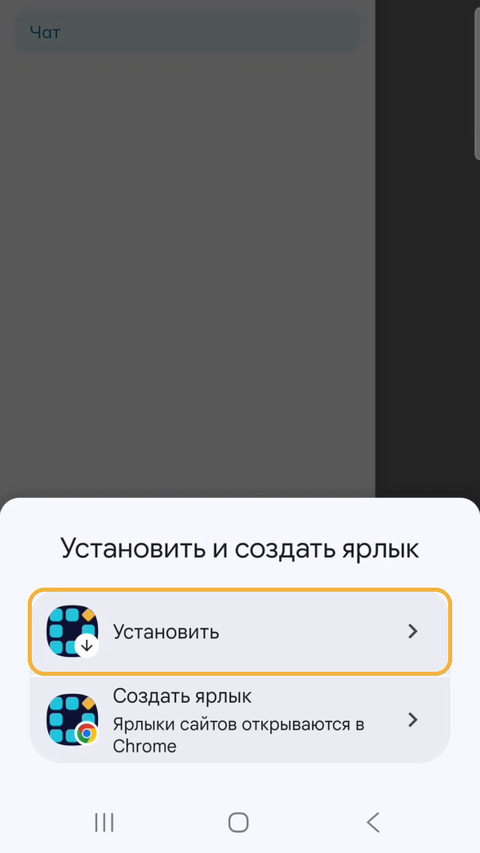


Done — OctoJinn now opens from its icon, like a regular app
Frequently asked questions
No. The icon is added from Safari on an iPhone or from Chrome on Android. No profiles, files or signing in with someone else's Apple ID — if anyone asks for them, it isn't us
It opens the same way, in its own window, but you never need to update it: you always have the latest version
Press and hold it, then choose «Remove». Your data in OctoJinn stays